
We Got a Fake ‘Google Ads’ Email Yesterday — Here’s Exactly How We Knew
Yesterday morning, an email landed in one of our company inboxes that made us stop what we were doing and read it twice.
The subject line read: “Action required: Sync your Google Ads manager account” — the tone it was going for was urgency. It had the Google Ads logo, the familiar Google footer (complete with the Mountain View headquarters address), and a message that was both professional and pressing: sync your account with our “upgraded security framework” by August 19, 2026 — or your active campaigns will be paused, your Smart Bidding algorithms will reset, and account recovery will take up to 14 days of manual review.
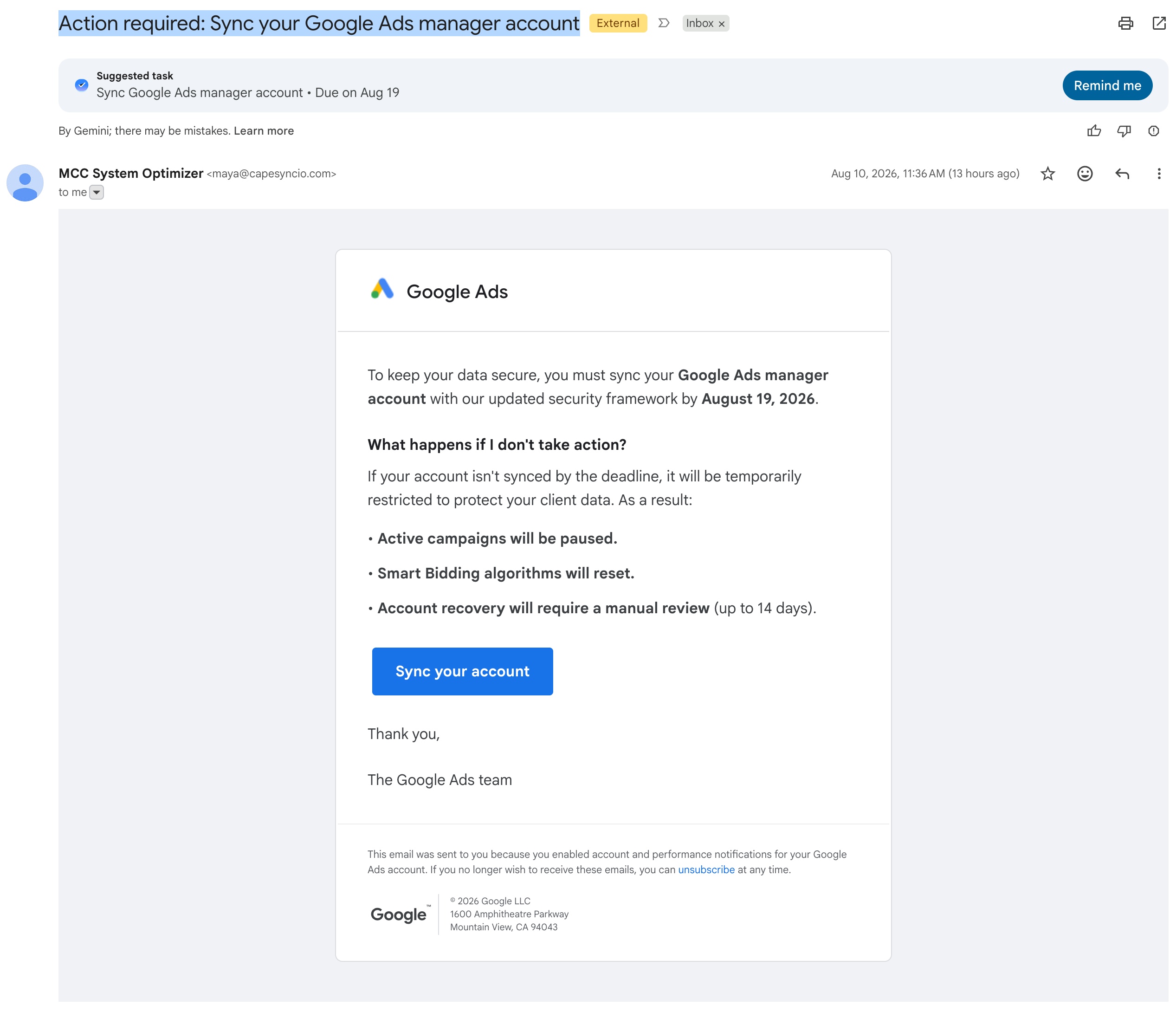
It looked real. It felt real. And if we weren’t a web company that spends its days working with websites, domains, and email servers, this email might have successfully tricked us into clicking.
It was a phishing email — and a well-crafted one. Since security researchers at cybersecurity firm Cofense are reporting a wave of these attacks targeting businesses, we want to fully dissect the email we received: how it disguised itself as Google, how we verified it was fake, and what you should do if a similar email shows up in your inbox.
What the Email Claimed
The email dressed itself up as a “system maintenance notice” from Google Ads. The playbook was classic pressure tactics:
- A deadline — “complete the sync by August 19, 2026”
- A threat — campaigns paused, Smart Bidding reset, 14 days of manual review to recover
- A big, eye-catching button — “Sync your account”
- A trustworthy skin — Google Ads logo, official-looking footer, even a thoughtful line explaining “you received this because you enabled account notifications”
Every element was designed to make you act fast and stop thinking. That is the single biggest tell of any phishing email: manufactured urgency.
How We Verified It Was Fake — Four Red Flags
We took this email completely apart, using methods any business owner can learn. Here’s what we found:
1. The sender wasn’t Google
The display name said “MCC System Optimizer” — a name Google has never used. The actual sending address was maya@capesyncio[.]com. Official Google Ads notifications only come from google.com addresses. Any other domain, no matter how official the email looks, is an impostor.
2. The sending domain was only 23 days old
We checked the public registration record for the sender’s domain: it was registered on July 18, 2026 — just 23 days before the email was sent. A freshly registered domain sending “urgent account notices” is one of the strongest phishing indicators there is. Google has used the same batch of domains for decades; scammers burn through new ones every week.
3. The button didn’t go to Google
Hovering over the “Sync your account” button (without clicking) revealed the real destination: a page on blogspot.com — a free blog hosting service. Google will never route an account-security action through a random blog page. According to the attack chain disclosed by security firm Cofense, that blog page quietly redirects victims to a lookalike website (such as mcc-sync-ads[.]com) hosting a pixel-perfect fake Google sign-in form.
4. The threat itself was made up
Pay attention to this one: there is no such thing as “syncing your Google Ads manager account with a security framework.” Manager accounts (MCC) don’t work that way. Google doesn’t pause your campaigns or reset your Smart Bidding because you didn’t click a link in an email. The entire premise was invented out of thin air to create panic.
The Cleverest Part: Why Gmail Didn’t Stop It
This is the part that impressed us — and the part every business owner should be aware of.
Email has three standard anti-forgery checks: SPF, DKIM, and DMARC. This phishing email passed all three. How? The attackers didn’t forge Google’s servers at all — they registered their own disposable domain, purchased a Google Workspace business plan for that domain, and then sent the email through Google’s own mail servers. Every cryptographic signature was genuine. Gmail’s filters saw a fully authenticated email and delivered it straight to the inbox.
Here’s an analogy: the scammer didn’t forge your company’s seal — they legally registered a company with a similar name and obtained their own real seal. Technology can verify that “the seal is genuine,” but it can’t judge “whether the person holding the seal has good intentions.”
The takeaway: technical verification can only confirm where an email came from — not what it wants. So we kept digging into what this scammer was really after.
What the Attacker Is Really After
This isn’t ordinary spam. According to a threat report published by cybersecurity firm Cofense on July 21, 2026, this is an active, coordinated attack campaign specifically targeting Google Ads manager accounts — and multiple online media outlets have been reporting a surge in MCC account hijacking over the past month.
The complete attack chain works like this:
- You click “Sync your account” and land on a very convincing intermediate page carrying Google Ads branding
- The page redirects you to a lookalike domain hosting a fake login page
- A “Google sign-in” window pops up — but it’s a fake built with JavaScript, not a real Google window
- The email and password you type in go straight into the attacker’s pocket
- The attacker logs into your Google Ads account, takes over your manager account (MCC), attaches their own ad accounts — and then runs their ads on your advertising budget
If You Receive a Similar Email
Here are the steps we recommend, in order:
- Don’t click anything. Not the button, not the “unsubscribe” link — don’t touch anything in the email.
- Verify independently. Open your browser yourself, manually type in
ads.google.com, and log in. If there’s a real problem with your account, there will be a notification in the dashboard. If everything looks normal in the dashboard, that email was lying. - Check the sender’s real address. Click on the sender’s name to see the full address. If it doesn’t end in
google.com, it’s not Google. - Report it as phishing in Gmail (the three-dot menu in the top right → “Report phishing”). This is more than deleting — reporting helps Google identify and shut down this attack campaign, protecting others.
- Warn your team. These emails target whoever manages your ad account — it could be your marketing person, your admin staff, or your agency.
If You Already Clicked the Link and Entered Your Password
Don’t panic — but act immediately:
- Change your Google account password right away
- Enable two-factor authentication (2FA) — the single most effective defense against stolen passwords
- Check your Google account’s security page and kick out any devices and login sessions you don’t recognize
- In your Google Ads dashboard, review account access, remove any users you don’t recognize, and check linked manager accounts
- Review recent campaign activity and billing for any actions you didn’t authorize
- If you find anything unusual, contact Google Ads support immediately to help you resolve it
The Bigger Picture
As a Toronto web company with 20 years in this business, our daily work is building and protecting our clients’ online presence. But an unsettling reality of 2026 is this: your website and your advertising account are attacked through the same door — your inbox.
Phishing emails are getting smarter. They can pass technical verification, replicate brands perfectly, and deliberately show up when you’re busiest. But the defense hasn’t changed: slow down, check the sender, and never let an email decide where you log in.
If you receive an email about your website, domain, Google account, or advertising and you’re not sure it’s real — before touching it, forward it to someone technical for a look. Five minutes of verification is far cheaper than a hijacked ad account.
Stay vigilant, everyone.